
Digital Boards vs Traditional Learning: What Works Best
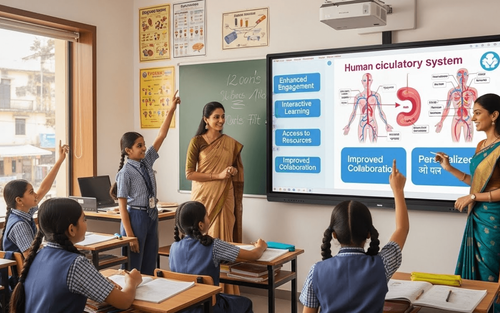

Table of Contents
- Why Digital Boards Matter for Today's Students
- What Are Digital Boards?
- Educational Benefits of Digital Boards
- When to Use Each Type of Digital Board
- Digital Boards in the Classroom
- Digital Boards for Home Learning
- Digital Boards vs. Traditional Methods
- Choosing the Right Digital Board for Your Student
- Common Concerns (and Why They are Overblown)
- How PlanetSpark Leverages Digital Learning Tools
The teacher writes on the whiteboard. A student in the back row squints.
"Can you make it bigger?" they ask.
The teacher erases and rewrites. Bigger now, but half the previous content is gone.
Meanwhile, the student who learns visually requires color-coding.
The kinesthetic learner needs to interact.
The student with dysgraphia struggles to copy notes before they are erased.
One whiteboard. Thirty different learning needs.
Now imagine this instead:
The teacher writes on a digital board. Every student sees it clearly on their device. Visual learners get color-coded diagrams. Kinesthetic learners interact with the content directly. Notes are automatically saved. Students who were absent access the entire lesson later.
This is not futuristic fantasy. This is digital boards in education today.
And it's not just for classrooms. Digital boards are transforming how kids learn, create, collaborate, and express themselves at home and school.
From interactive classroom whiteboards to personal writing tablets to collaborative digital canvases, these tools offer benefits that traditional methods simply cannot match: accessibility, interactivity, personalisation, and engagement.
This guide breaks down everything parents and teachers need to know about digital boards: what they are, why they matter, how to choose them, and how to maximise their educational impact.
Let's explore why digital boards are becoming essential learning tools for today's students.
Why Digital Boards Matter for Today's Students
Digital boards aren't just cool technology. They address real educational challenges.
They Accommodate Diverse Learning Styles
- Visual learners: Color coding, diagrams, videos, and images are all integrated seamlessly
- Auditory learners: Embedded audio, recorded lessons, text-to-speech features
- Kinesthetic learners: Touch, drag, manipulate, interact directly with content
- Reading/writing learners: Text-based content, note-taking, annotation tools
Traditional boards favor one or two learning styles. Digital boards accommodate all.
They Support Different Abilities
For students with dysgraphia or motor challenges:
- Typing instead of handwriting
- Voice-to-text options
- Undo/redo without messy erasures
For students with visual impairments:
- Zoom and magnification
- High-contrast modes
- Screen reader compatibility
For students with attention challenges:
- Interactive elements maintain engagement
- Multimedia variety prevents monotony
- Clear, organized digital content
Digital boards make learning more accessible for everyone.
They Prepare Students for Digital Futures
The reality: Most careers require digital literacy.
What students learn with digital boards:
- Digital collaboration tools (used in almost every workplace)
- Cloud-based file management
- Digital presentation skills
- Technology troubleshooting
- Remote work capabilities
These aren't extras. They are essential 21st-century skills.
They Enable Learning Continuity
Traditional scenario: Student is absent. They miss the lesson. Someone shares messy handwritten notes (maybe).
Digital board scenario: Student accesses the saved lesson, complete with teacher annotations, embedded resources, and recorded explanations.
Digital boards ensure learning doesn't stop when students can't physically be present.
They Reduce Resource Waste
Traditional materials consumed:
- Whiteboard markers (constantly replaced)
- Paper for notes and handouts
- Printed worksheets
- Physical storage space
Digital boards:
- No consumables needed
- Paperless note-taking and assignments
- Cloud storage eliminates physical clutter
- One device replaces dozens of notebooks
What Are Digital Boards?
Digital boards come in many forms. Let's explore.
Type 1: Interactive Whiteboards (Classroom Displays)
Large touch-sensitive displays mounted in classrooms that function as both whiteboards and computers.
Popular brands: SMART Board, Promethean, ViewSonic
How they work: Teachers and students interact directly with the board using touch, styluses, or gestures. Content can be saved, shared, and manipulated digitally.
Primary use: Whole-class instruction, collaborative activities, multimedia presentations
Type 2: Personal Digital Writing Tablets
Individual devices students use for note-taking, drawing, and creative work.
Popular options:
- iPad with Apple Pencil
- Samsung Galaxy Tab with S Pen
- Remarkable tablets
- Wacom drawing tablets
How they work: Students write, draw, or annotate directly on the screen with a stylus. Notes are saved digitally and can be organized, searched, and shared.
Primary use: Personal note-taking, creative projects, homework, digital art
Type 3: Digital Collaboration Boards
Cloud-based platforms where multiple users work on a shared digital canvas simultaneously.
Popular platforms:
- Google Jamboard
- Miro
- Mural
- Microsoft Whiteboard
- Padlet
How they work: Students and teachers access the board from any device, add content (text, images, drawings), and collaborate in real-time or asynchronously.
Primary use: Group projects, brainstorming, remote learning, collaborative problem-solving
Type 4: Hybrid Solutions
Tools that bridge the physical and digital worlds, such as digitised pens or camera-equipped boards.
Examples:
- Smartpens that digitise handwritten notes
- Document cameras paired with projection systems
- Apps that capture whiteboard content digitally
How they work: Traditional writing gets converted to a digital format for storage and sharing.
Primary use: Teachers who prefer traditional writing but want digital benefits
Educational Benefits of Digital Boards
Let's get specific about how digital boards improve learning outcomes.
Enhanced Engagement
The problem with traditional boards: Passive learning. Students watch and copy.
With digital boards: Active participation. Students interact, manipulate, and contribute.
Examples:
- Drag-and-drop activities (sorting, categorizing, sequencing)
- Interactive quizzes with instant feedback
- Collaborative brainstorming where everyone adds ideas simultaneously
- Gamified learning activities
Research shows that interactive learning increases retention by up to 75% compared to passive listening.
Instant Feedback
Traditional method: Student completes work. The teacher collects. Grades days later. Learning moment has passed.
Digital boards with integrated tools: Instant assessment. Immediate correction. Learning happens in real-time.
Examples:
- Quick polls show class understanding instantly
- Interactive exercises provide immediate right/wrong feedback
- Teachers see all student responses simultaneously and adjust instruction
Multimedia Integration
Traditional boards: Text and basic drawings only.
Digital boards: Text, images, videos, audio, animations, interactive simulations, web content, all seamlessly integrated.
Why this matters: Complex concepts become clearer with multiple representations.
Examples:
- Science: Watch cell division while the teacher annotates over the video
- History: Examine primary source documents, maps, and photos side-by-side
- Math: Manipulate 3D geometric shapes to understand spatial relationships
- Literature: Analyze text alongside film adaptations
Personalisation at Scale
Traditional teaching: One pace. One approach. Some students are bored, others are lost.
Digital boards enable: Differentiated content delivered simultaneously.
Examples:
- Advanced students get extension activities while others work on core content
- Struggling students access scaffolded versions with extra support
- Each student annotates the same material differently based on their needs
Collaboration Skills
Digital collaboration boards teach:
- How to contribute to group work asynchronously
- How to provide feedback constructively
- How to build on others' ideas
- How to resolve conflicts in shared digital spaces
Organisation and Retrieval
Traditional notes: Lost notebooks. Illegible handwriting. Information buried and forgotten.
Digital notes:
- Searchable by keyword
- Organized automatically by date, subject, or tags
- Backed up to cloud (never lost)
- Accessible from any device
Creative Expression
Digital boards unlock creativity that traditional methods limit:
- Digital art without expensive supplies
- Animation and multimedia projects
- Easy revision (undo/redo without starting over)
- Professional-looking presentations
- Mixing text, drawings, images, and audio
Students create work they're genuinely proud of.
When to Use Each Type of Digital Board
Not all digital boards serve the same purpose. Here's when to use each type.
Interactive Whiteboards: Best for Whole-Class Instruction
Use when:
- Teaching new concepts to the entire class
- Demonstrating processes step-by-step
- Facilitating whole-class discussions
- Displaying multimedia content
- Running interactive activities together
Not ideal for:
- Individual student work
- Detailed note-taking
- Home learning
Best practices:
- Save each lesson for absent students
- Encourage student interaction (not just a teacher tool)
- Use interactive features, not just as a projector
- Integrate with student devices for participation
Personal Writing Tablets: Best for Individual Work
Use when:
- Taking lecture notes
- Completing homework
- Creating personal projects
- Practicing writing or drawing
- Working independently
Not ideal for:
- Real-time collaboration with others
- Presenting to large groups (too small)
- Complex multimedia projects (limited software)
Best practices:
- Establish digital organization systems early
- Sync with cloud storage for backup
- Use appropriate apps for different subjects
- Balance digital and handwritten practice
Collaboration Boards: Best for Group Work
Use when:
- Brainstorming as a group
- Working on team projects
- Remote or hybrid learning
- Collecting ideas from everyone
- Organizing complex information visually
Not ideal for:
- Linear note-taking
- Traditional lectures
- Solo creative projects
Best practices:
- Set clear collaboration guidelines
- Assign sections or roles to prevent chaos
- Use commenting features for feedback
- Archive boards for later reference
When to Combine Multiple Types
Interactive whiteboard for instruction + personal tablets for note-taking + collaboration boards for group projects.
Why it works: Each tool does what it does best. Students experience variety. Different learning needs are met.
Digital Boards in the Classroom
Here's how teachers can maximize digital board benefits.
For Direct Instruction
Effective uses:
- Annotate over textbook pages projected on the board
- Build concept maps collaboratively
- Display student work for peer analysis
- Run interactive grammar or math exercises
- Show and annotate videos
Pro tip: Don't just lecture AT the board. Make it interactive. Have students come up and manipulate content.
For Formative Assessment
Quick checks using digital boards:
- Exit tickets submitted digitally
- Quick polls ("Thumbs up if you understand")
- Interactive quizzes with instant results
- Students solve problems on their devices, which are displayed on the main board
Benefit: Teachers see class understanding immediately and adjust instruction.
For Differentiation
How digital boards enable differentiation:
- Display the main instruction on the board while pushing differentiated materials to student devices
- Create learning stations where students rotate through board-based and device-based activities
- Provide scaffolded or extended content accessible via QR codes displayed on the board
For Collaborative Learning
Activities that shine on digital boards:
- Group problem-solving with everyone annotating simultaneously
- Debates with evidence displayed and annotated live
- Peer editing, where the class discusses writing samples on the board
- Jigsaw activities where groups report findings on a shared board
Classroom Management with Digital Boards
Use digital boards for:
- Daily agendas and objectives (always visible)
- Timers for activities
- Behavior tracking and positive reinforcement
- Showcasing excellent student work
- Assignment calendars and deadlines
Digital Boards for Home Learning
Digital boards aren't just for schools. Parents can leverage them for home learning, too.
For Homework and Study
Personal writing tablets help students:
- Take organised digital notes
- Complete homework neatly
- Access online learning platforms
- Practice skills with educational apps
- Review teacher-created content from class
Establish a consistent digital organization system (folders by subject, consistent naming conventions).
For Creative Projects
Digital boards enable:
- Digital art and design projects
- Animated stories or presentations
- Multimedia book reports
- Science project documentation with embedded photos and videos
- Personal journals and portfolios
For Parent-Child Learning
Collaboration boards facilitate:
- Parent-child homework help (work together on a shared board)
- Family brainstorming (vacation planning, chore charts, goals)
- Visual schedules and routines
- Teaching new concepts interactively
Example: Parent teaching fractions? Use a collaboration board to draw pizzas, cut them into slices, and manipulate them together.
For Remote Tutoring
When students work with tutors remotely:
- Shared collaboration boards create virtual study sessions
- Tutors annotate student work in real-time
- Students share screens and work together
- All work is saved for future reference
Digital Boards vs. Traditional Methods
Let's address the honest comparison.
What Traditional Methods Do Better
Tactile experience: Physical writing develops fine motor skills in younger children.
No tech barriers: Works during power outages, doesn't require devices or internet.
Simplicity: No learning curve. Everyone knows how to use paper and a pencil.
Minimal distractions: No notifications, pop-ups, or temptation to switch apps.
Permanence: Physical artifacts (artwork, handwritten letters) have sentimental value.
When to choose traditional:
- Early elementary handwriting instruction
- Situations without reliable technology access
- Quick sketches or brainstorming when speed matters
- Creating physical keepsakes
What Digital Boards Do Better
Accessibility: Accommodates diverse learning needs and abilities.
Interactivity: Engages students actively in the learning process.
Organization: Searchable, organized, never lost.
Collaboration: Multiple people can work together regardless of location.
Multimedia: Integrates text, images, video, and audio seamlessly.
Efficiency: No rewriting, easy editing, instant sharing.
Sustainability: Paperless, no consumables needed.
When to choose digital:
- Differentiated instruction for diverse learners
- Collaborative projects
- Situations requiring multimedia
- Long-term content that needs organization and retrieval
- Remote or hybrid learning
The Best Approach: Balanced Integration
Not either/or. Both/and.
Example balanced approach:
- Students sketch initial ideas on paper, then create final projects digitally
- Handwrite journal entries, photograph them, and organize them digitally
- Use physical manipulatives for math, document learning with digital photos and annotations
- Read physical books, discuss them on digital collaboration boards
Balance provides the benefits of both while minimising the limitations of each.
Choosing the Right Digital Board for Your Student
Overwhelmed by options? Here's your decision guide.
For Classroom Use (Teachers/Schools)
Budget considerations:
- High budget: Interactive whiteboard (SMART Board) + student tablets
- Medium budget: Large display with wireless casting + collaboration software
- Low budget: Document camera + free collaboration apps on existing devices
Questions to ask:
- How many students will use it simultaneously?
- What's the primary use case (instruction, collaboration, assessment)?
- What's the technical support situation?
- What software integrations are needed?
Recommendation: Start with collaboration software (free/cheap, works on existing devices) before investing in hardware.
For Home Use (Parents)
For note-taking and homework:
- Best overall: iPad with Apple Pencil (ecosystem, app availability)
- Best value: Samsung Galaxy Tab with S Pen (Android flexibility)
- Best for distraction-free: Remarkable tablet (e-ink, no apps/internet)
For collaboration and projects:
- Best free option: Google Jamboard (requires a Google account)
- Best for visual organisation: Padlet or Miro (free tiers available)
For digital art:
- Best for serious artists: Wacom drawing tablets (professional-grade)
- Best for beginners: Any tablet with stylus support + free apps
Budget guide:
- Entry level ($50-150): Basic Android tablet with stylus
- Mid-range ($300-500): iPad (base model) with Apple Pencil
- Premium ($700+): iPad Pro or Samsung Galaxy Tab S series
Parent tip: Check if your school provides devices or discounts before purchasing.
Key Features to Look For
For any digital board solution:
- Stylus with palm rejection (for natural writing)
- Cloud sync (automatic backup)
- Good note-taking app (OneNote, Notability, GoodNotes)
- Collaboration capability (shares with others easily)
- Long battery life (full school day minimum)
- Durable/protective case (students are rough on tech)
Red Flags to Avoid
- Laggy stylus response (frustrating to write with)
- Poor battery life (useless when dead)
- Proprietary closed systems (limits flexibility)
- Overly complex software (steeper learning curve than benefit)
- No offline capability (problems when WiFi fails)
Common Concerns (and Why They are Overblown)
Parents and teachers often worry about digital boards. Let's address concerns honestly.
Concern 1: Too much screen time
Adding digital boards means even more screen time.
The reality: Not all screen time is equal.
- Passive consumption (videos, games) ≠ Active creation (writing, drawing, problem-solving)
- Digital boards are tools for CREATION, not consumption
- They replace paper, not replace outdoor play
The solution: Balance. Use digital boards for learning. Limit passive entertainment screens separately.
Concern 2: Handwriting skills will suffer
Kids won't learn proper handwriting.
The reality: Research shows mixed results, and context matters.
- Early elementary: Handwriting instruction is still important for motor development
- Middle school and up: Typing and digital writing are MORE relevant to future needs
- Balance is possible: Some handwriting practice + digital tools for efficiency
The solution: Teach handwriting in early grades. Transition to predominantly digital by middle school. Real world prioritises digital communication.
Concern 3: Students will get distracted.
Devices mean games, social media, and off-task behavior.
The reality: Distraction exists with or without devices. (Students doodled on paper notebooks long before tablets.)
The solution:
- Use device management software (schools)
- Set clear expectations and consequences
- Choose apps with fewer distractions (e.g., Remarkable has no web browser)
- Teach digital citizenship and self-regulation
Distraction is a behaviour issue, not a technology issue.
Concern 4: Not all families can afford devices.
Digital boards create inequity.
The reality: This is a legitimate concern that schools must address.
The solution:
- Schools provide devices (many do via grants and programs)
- 1:1 device initiatives
- Use free software that works on any device students already have
- Offer device lending programs
- Don't make home device ownership required for academic success
Equity matters. Schools must ensure access, not assume it.
Concern 5: Technology fails and disrupts learning.
WiFi crashes, devices break, software glitches.
The reality: Yes, technology fails. So do projectors, broken pencils, and fire drills.
The solution:
- Always have backup plans (teachers do this anyway)
- Teach troubleshooting skills (valuable learning!)
- Use offline-capable tools when possible
- Maintain devices properly
Technology failure is a temporary inconvenience, not a reason to avoid progress.

How PlanetSpark Leverages Digital Learning Tools
At PlanetSpark, we understand that digital tools are most powerful when paired with human connection and expert guidance.
Live, Interactive Digital Learning
Our approach combines:
- Real-time video interaction with certified trainers
- Digital whiteboards for collaborative learning
- Screen sharing for instant feedback
- Cloud-based resources that students can access anytime
Unlike passive video courses: Students actively participate, create, and engage using digital tools.
Digital Tools for Communication Development
Students use digital platforms to:
- Record and review their speeches (video analysis)
- Collaborate on stories using shared documents
- Present projects using digital presentations
- Participate in debates with digital evidence and annotation
The benefit: Students develop BOTH digital literacy AND communication skills simultaneously.
AI-Enhanced Learning (Not AI-Replaced)
SparkX AI Video Analysis:
- Students record speeches on digital devices
- AI analyzes body language, voice, grammar, confidence
- Students receive detailed digital reports
- Trainers use data to provide personalized coaching
Digital tools amplify human teaching, not replace it.
Digital Portfolio Building
Through Spark Diary and Sparkline:
- Students maintain digital journals of their work
- Build portfolios showcasing growth over time
- Share accomplishments safely in a moderated digital community
- Access their work anytime, anywhere
Digital portfolios document learning journeys in ways paper never could.
Preparing Students for Digital Futures
PlanetSpark students learn:
- How to collaborate effectively using digital tools
- How to present ideas compellingly in digital formats
- How to give and receive feedback in online environments
- How to use technology purposefully, not passively
These skills transfer directly to college and career success.
Digital boards are not replacing traditional teaching. They're expanding what's possible.
They make learning more:
- Accessible (accommodating every learning style and ability)
- Engaging (interactive, multimedia, gamified)
- Collaborative (students work together regardless of location)
- Organized (searchable, backed up, never lost)
- Personalized (each student gets what they need)
- Relevant (preparing students for digital futures)
Yes, implementation challenges exist. Technology costs money. Teachers need training. Students need guidance. Screen time requires balance.
But these are solvable problems, not reasons to avoid progress.
The question isn't "Should we use digital boards?" It's "How do we use them effectively?"
Start where you are:
- Teachers: Try one free collaboration tool with your class this month
- Parents: Let your child take notes digitally for one subject
- Schools: Pilot interactive whiteboards in a few classrooms before full rollout
Small steps. Gradual integration. Balanced approach.
Because when used thoughtfully, digital boards don't just change HOW students learn. They change WHAT students can learn, WHO can access learning, and HOW WELL students prepare for their futures.
The future of education is hybrid: physical and digital, traditional and innovative, human connection enhanced by powerful tools.
Digital boards are one of those powerful tools.
Here’s more for creative and curious souls who believe in running an extra mile. A fun and easy reading of:
Digital Communication Skills for Kids: A Complete Guide
Smart Digital Detox Strategies to Raise Confident Kids
Mastering Story Elements: A Complete Guide for Kids
Frequently Asked Questions
Research shows mixed results. Digital boards alone don't improve learning, but when combined with effective teaching practices (interactivity, feedback, collaboration), they significantly enhance engagement and accommodation for diverse learners.
Use parental controls, device management software, or dedicated learning devices with limited app access. Set clear expectations and consequences. Monitor usage initially. Teach self-regulation skills gradually.
For basic classroom use, free tools (Google Jamboard, Padlet, Microsoft Whiteboard) work excellently. Paid options offer more features (storage, integrations, customization) that schools or heavy users might need but most don't require.
They offer text-to-speech, speech-to-text, adjustable font sizes, color contrast options, undo/redo without mess, typed text for motor challenges, and multimedia alternatives for different processing styles. Digital boards are inherently more accessible.
Digital boards eliminate paper consumption (significantly), but device manufacturing and e-waste have environmental costs. Overall, digital boards are more sustainable IF devices are maintained long-term and recycled properly.